
The advanced search tool expands on the side menu search field in that it offers options to help you narrow and refine your search.
This article will show you the following:
- Accessing the Search Window
- Top Toolbar
- Results List
- Object Type Toolbar
- Single Object Type Search
- Multiple Object Type Search
Accessing the Search Window
There are two ways you can access the Search window:
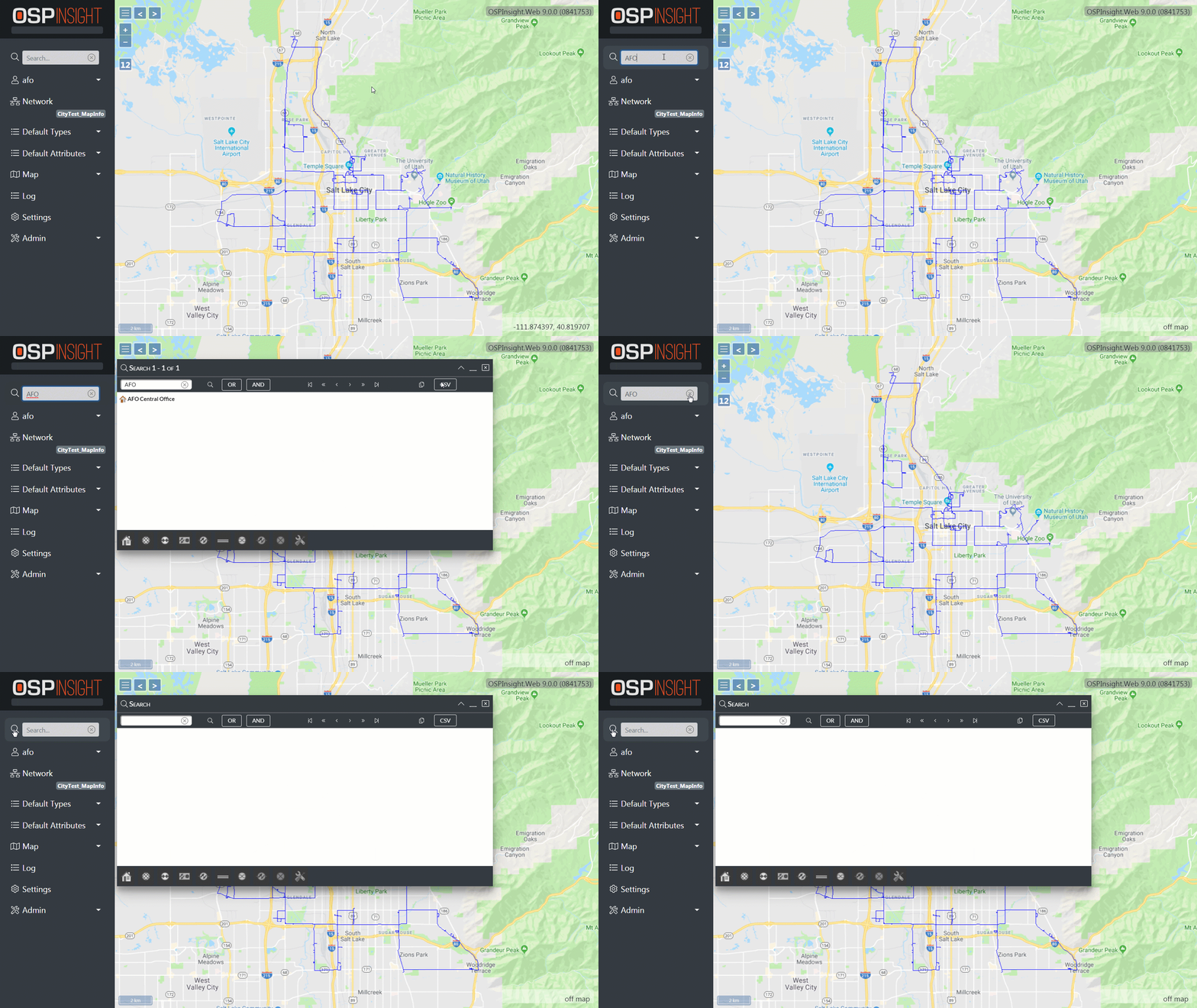
- Submit search term using the search field in Side Menu.
- Click the magnifying glass icon.
Top Toolbar
%20-%20Top%20Menu.png)
- Search Field - Enter the search terms in this box.
- Magnifying Glass - Select this icon or tap enter on your keyboard to submit terms you have entered into the search field. The search results list will show an exact match to your submitted terms.
- OR Search - When searching multiple terms, select this button to return results that contain any of the search terms.
- AND Search - When searching multiple terms, select this button to return results that contain all of the search terms.
- All Objects Search - When submitting a search that is empty the search results list will populate with all of the objects.
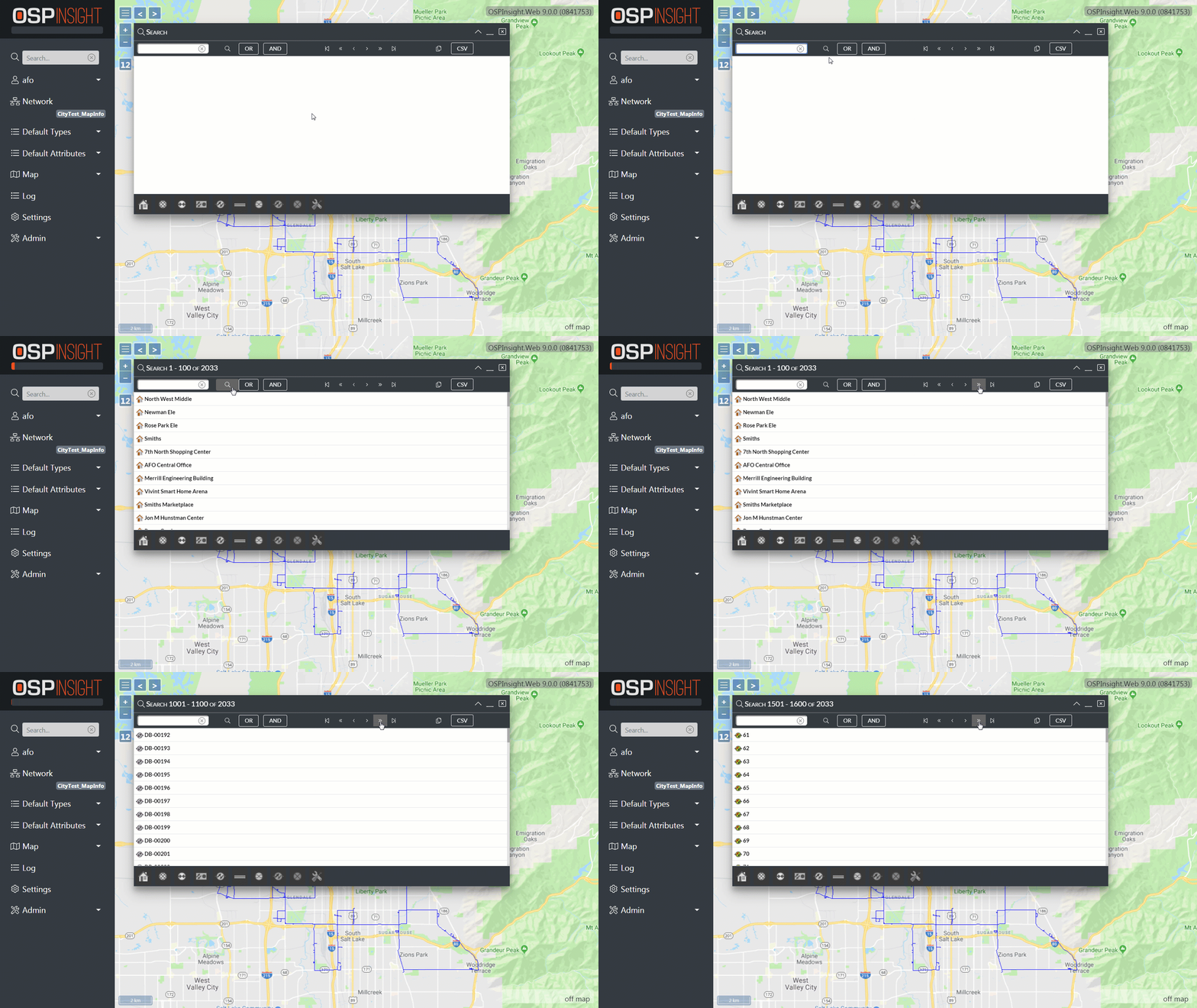
- Navigation Arrows - Select the arrow buttons to navigate search result pages.
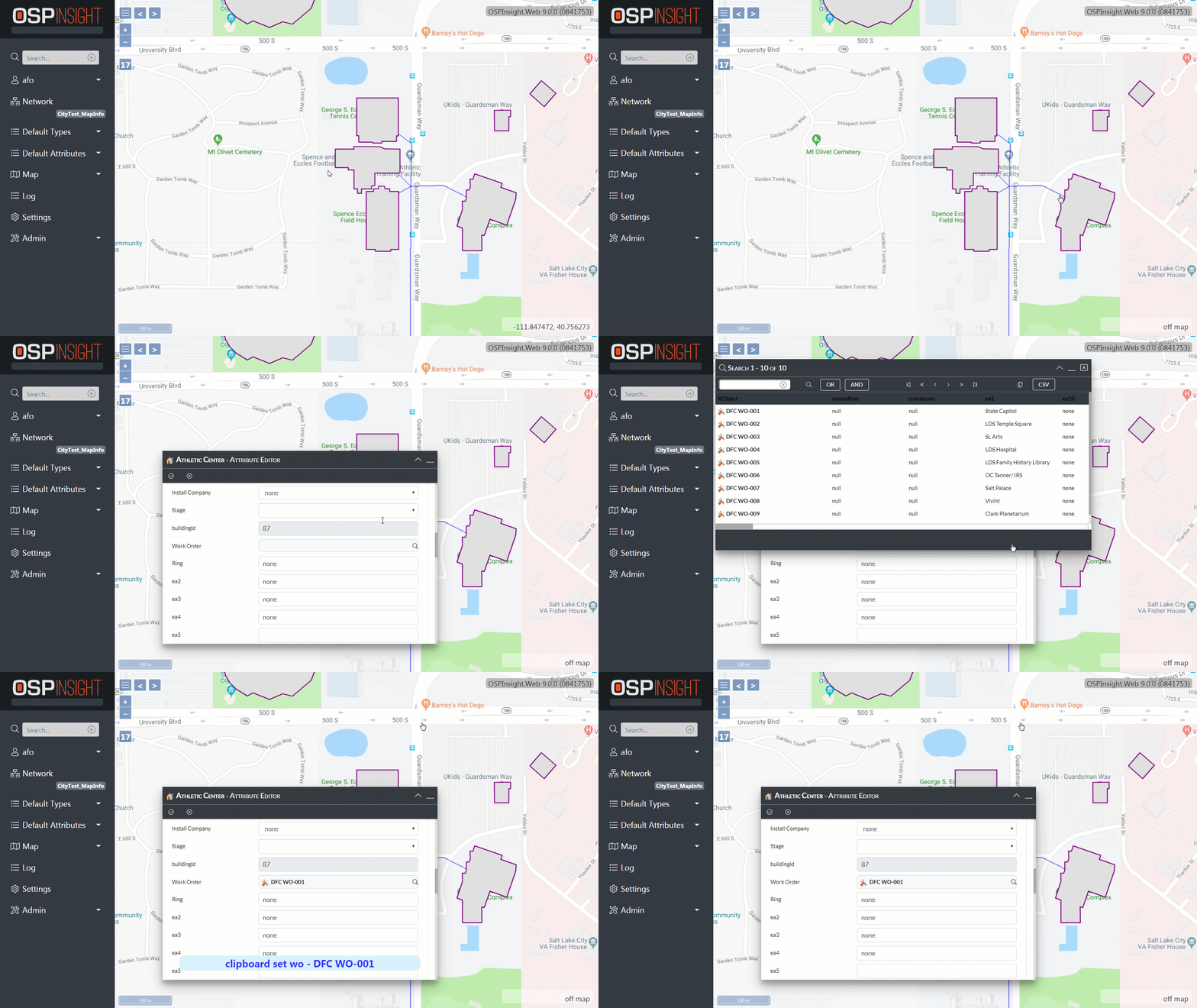
- Work Order Copy - Using the ‘Work Order’ field in an object Attribute Editor this button is used to copy the work order information to the object.
- CSV Download - Export search results to a CSV formatted file.
Results List
%20-%20Results%20List.png)
Your search results will be listed here. You can double-click a result to map to it. You can also right-click a result to display a list of functions. See Map Object Type Tools for more information on what these functions do.
When submitting a search that is empty the search results list will populate with all of the objects.
Object Type Toolbar
%20-%20Object%20Type%20Select.png)
Use the bottom toolbar to select different object types to perform precise searches.
Single Object Type Search
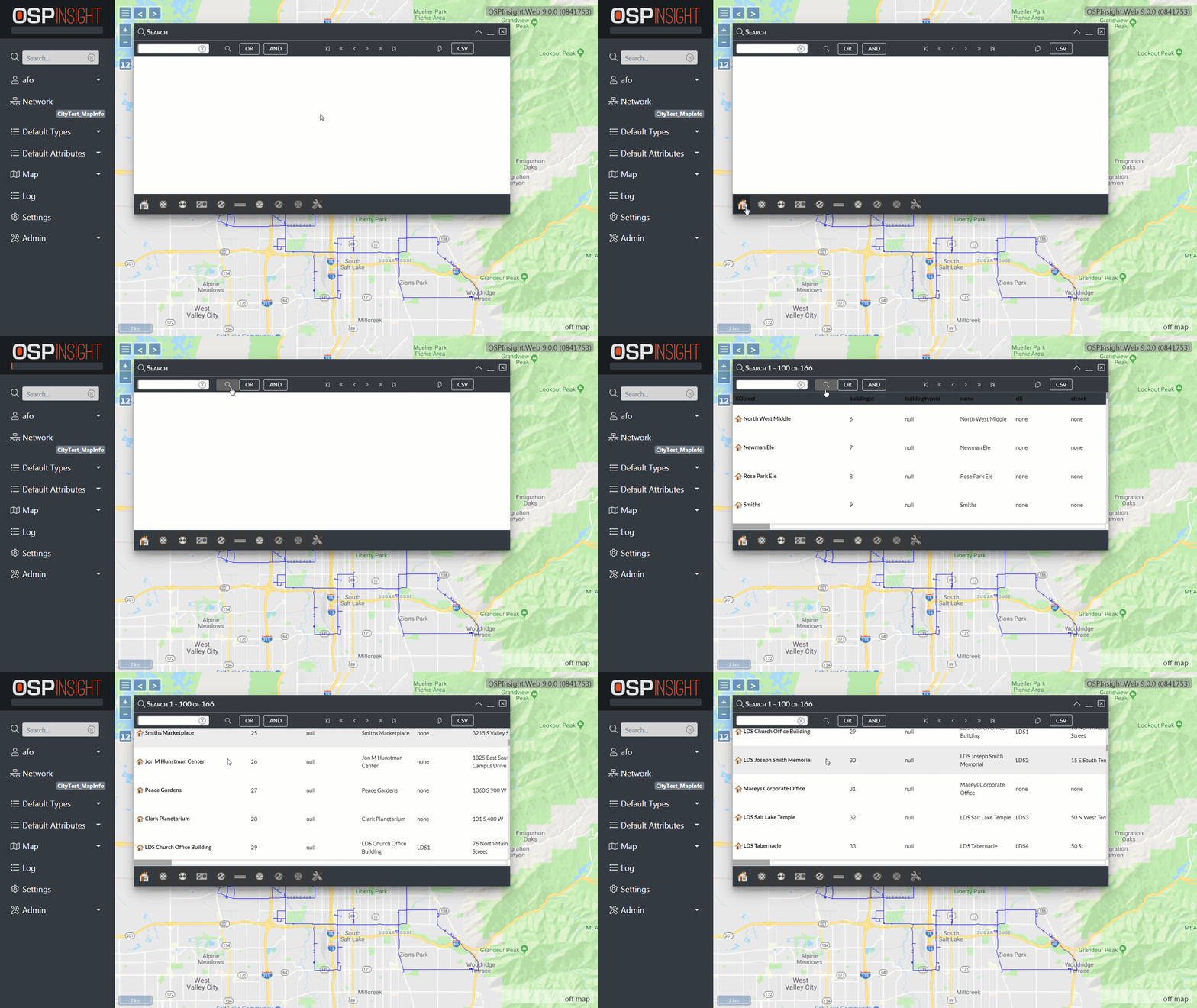
Select one map object type represented by their respective icons to include it in your search. The results of the single object type search include the attributes of each of the objects.
When submitting a search that is empty the search results list will populate with all of the objects for your object type.
Multiple Object Type Search
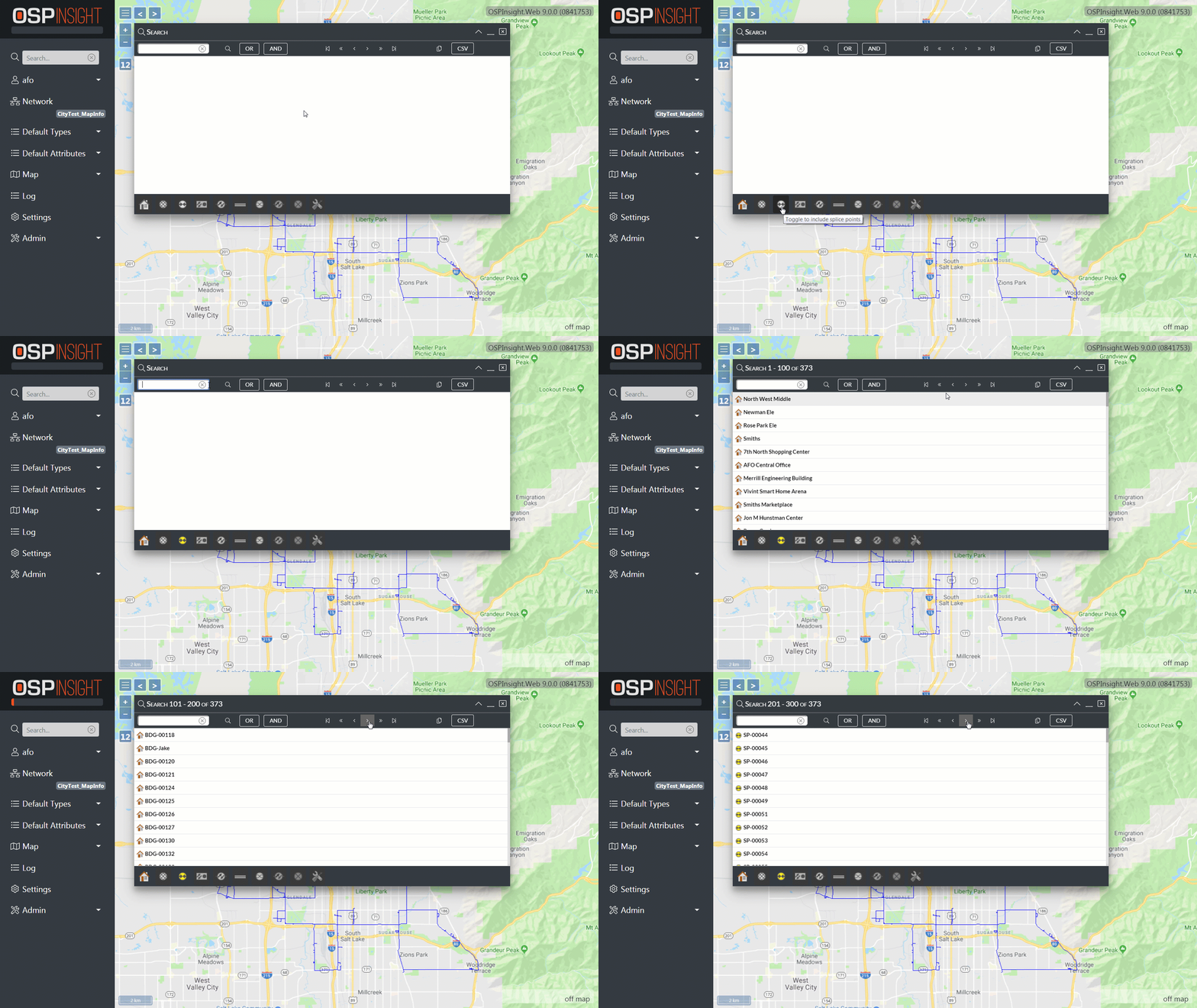
Select more than one map object type represented by their respective icons to include them in your search.
When submitting a search that is empty the search results list will populate with all of the objects for your all of your selected object types.
Next Steps
You’ve covered Advanced Search. Read on to learn more about:
Navigating the Map - Learn the techniques and tools for navigating the map window.
Adding Map Objects - Learn how to add map objects to the map.