
You can explore the map using a variety of methods and tools.
This article will show you the following:
- Navigation Basics
- Navigation Controls
- Scale
- Coordinates
- Adding a Bookmark
Navigation Basics
The primary methods of moving around on the map include panning and zooming.
- Click and drag anywhere on the map to explore the map

- When available, rotate the scroll wheel on your mouse to zoom in and out on the map
.gif)
- Hold shift while clicking and dragging the cursor over an area to zoom to that location

Navigation Controls
%20-%20Navigation%20Controls.png)
The top-left corner of the map displays controls for navigation, including:
- Menu Collapse - Opens and closes the menu.
- Previous View - Moves backward in map view history.
- Next View - Moves forward in map view history.
- Zoom In - Increases the scale of the current map view.
- Zoom Out - Decreases the scale of the current map view.
- Zoom Level Indicator - Displays the map view’s numerical zoom level.
Scale

The bottom-left corner of the map displays the map scale, which displays the relationship between the distance on the map with the corresponding distance in the real world.
Coordinates

The bottom-right corner of the map displays the GPS coordinate indicator, which displays the GPS coordinates of the cursor position.
Adding a Bookmark
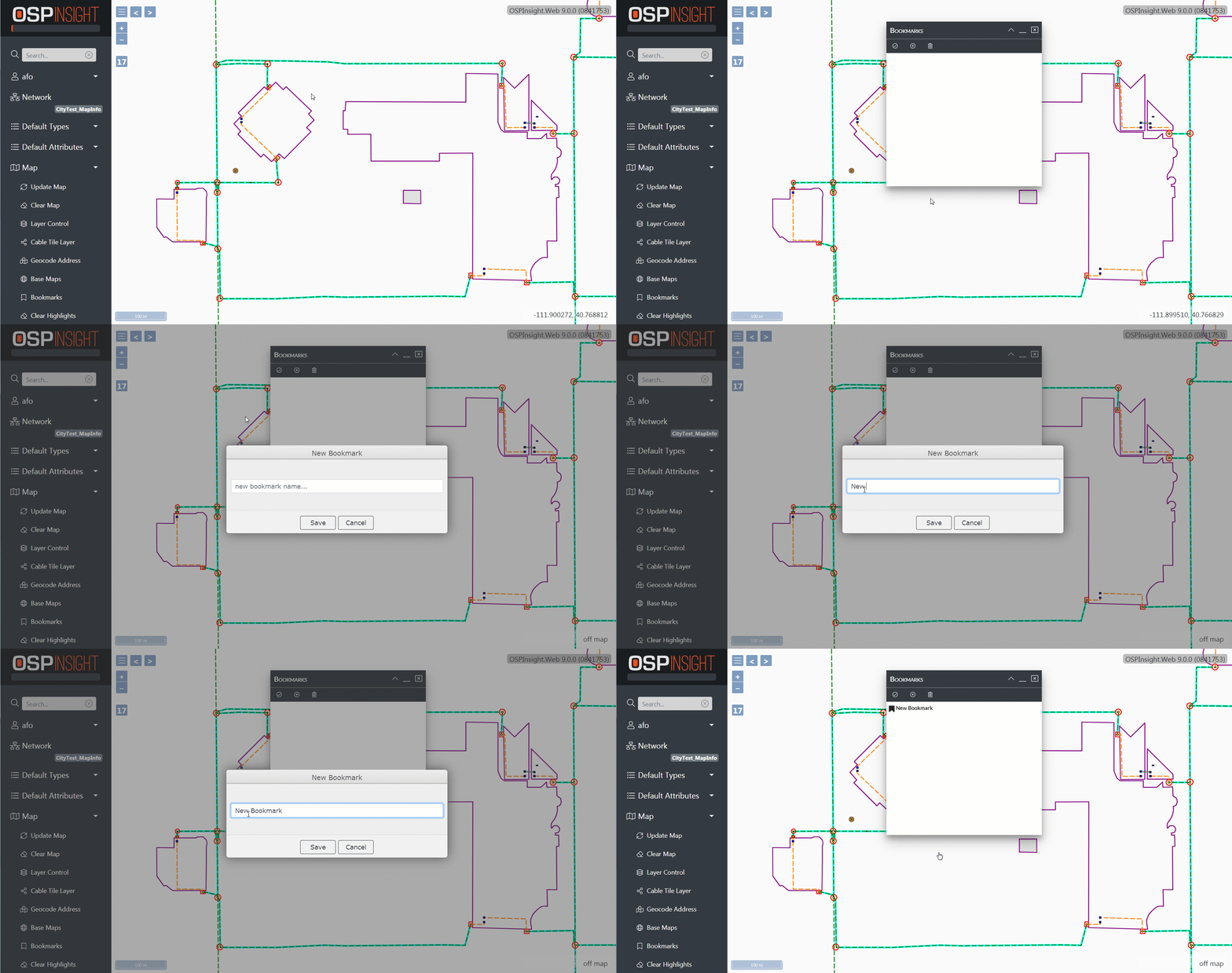
There are two ways to add a bookmark, which saves locations on the map for convenient reference:
Right-Click Menu
- Open Right-Click Menu.
- Select Bookmarks.
- Select Add button.
- Give your bookmark a name.
- Select Save.
- Close Bookmarks window.
Side Menu
- Select Map from Side Menu.
- Select Bookmarks.
- Select Add button.
- Give your bookmark a name.
- Select Save.
- Close Bookmarks window.
Next Steps
You’ve covered Navigating the Map. Read on to learn more about:
Adding Map Objects - Add map objects to the map.
Adding Map Object Attributes - Add supplemental data to your map objects, including material types, addresses, and more.